
Organizers can view orders and ticket purchases for their events directly from the Organizer Dashboard.
Tzkrti provides several ways to access order information, whether you want to view orders for a specific event or across all events.
This guide explains the different places where you can view and manage orders.
• Step 1
Log In to Your Organizer Account
Sign in to your Tzkrti organizer account.
After logging in, you will be taken to your Organizer Dashboard, which gives you an overview of your events and recent activity.
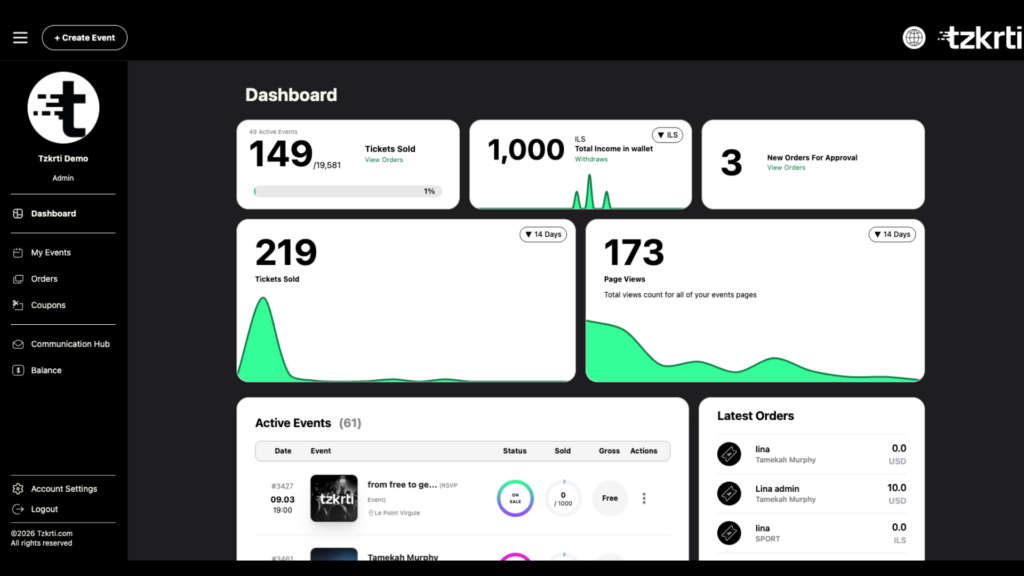
On the dashboard, you will see two important sections:
- Active Events
- Latest Orders
• Step 2
View Orders from the Active Events Section
The Active Events section displays a list of your current events along with key event information, including:
- Event image
- Event name
- Event date and time
- Event location
- Event status
- Number of tickets sold
- Gross revenue earned to date
To access orders for a specific event:
- Locate the event in the Active Events table.
- Click the three-dot menu next to the event.
- Select Show Tickets & Orders.
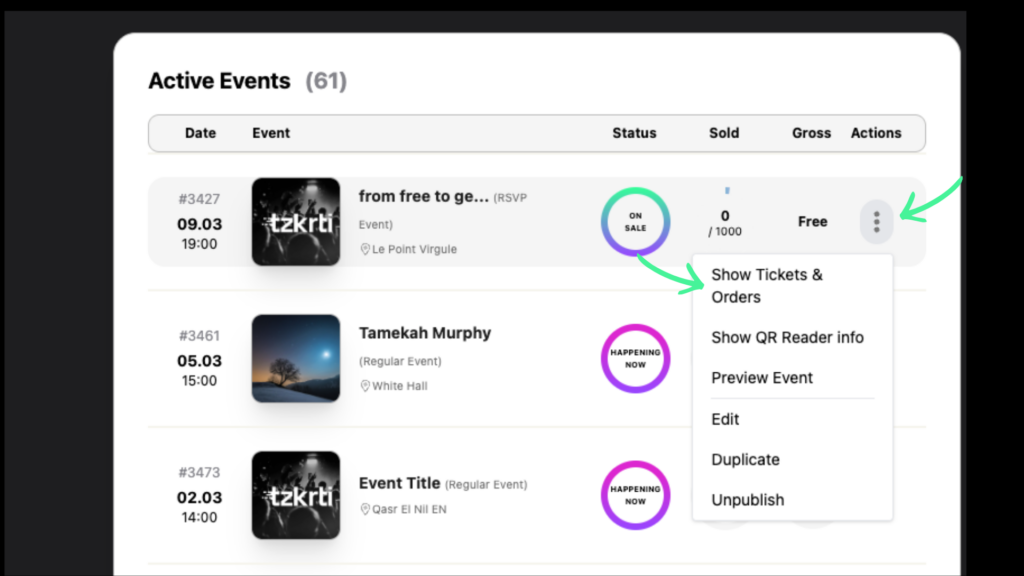
From this menu, you will also see other options such as:
- Show QR Reader Info
- Preview Event
- Edit Event
- Duplicate Event
- Unpublish Event
If you want to see all of your events, click View All Events at the bottom of the table.
• Step 3
Review Recent Orders from the Latest Orders Section
The Latest Orders section shows the most recent orders across all of your events.
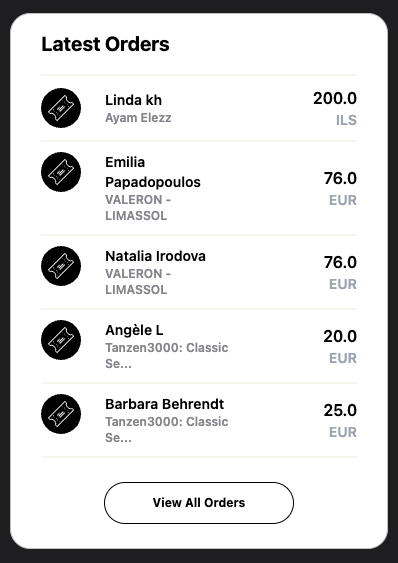
This section is not tied to a single event. Instead, it provides a quick overview of recent activity.
For each order, you can see:
- Customer name
- Event the ticket was purchased for
- Order total
This section is useful for quickly monitoring recent ticket purchases.
• Step 4
Access Orders from the My Events Page
You can also access event orders from the My Events section.
- Click the hamburger menu to expand the side menu.
- Select My Events.
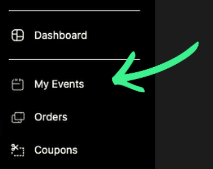
This page displays a full table of your events.
To view orders for a specific event:
- Locate the event in the table.
- Click the three-dot menu next to the event.
- Select Show Tickets & Orders.
• Step 5
View All Orders from the Orders Section
To see all orders across all events, use the Orders page.
- Open the side menu using the hamburger icon.
- Click Orders.
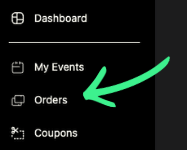
This page displays a complete list of all orders for your events.
In the top right corner, you will find a search icon that expands to provide filtering options.
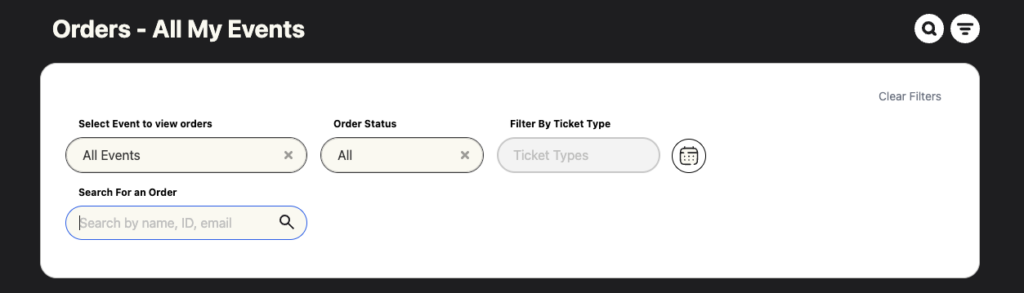
You can:
- Select a specific event to view its orders
- Filter by order status
- Search for an order by customer name, order ID, or email
These tools make it easy to quickly find and manage orders.