
If a participant did not receive their ticket email, organizers can easily resend the ticket directly from the Event Management page.
This guide explains how to locate the order and resend the ticket email.
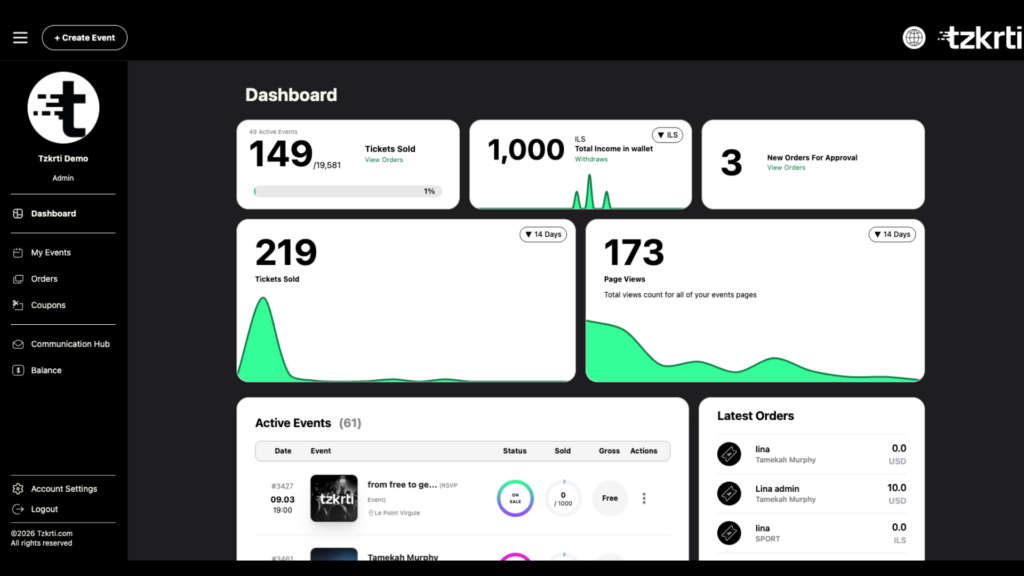
• Step 1
Go to Your Event
Log in to your Tzkrti organizer account.
From your dashboard, click My Events in the left side menu.
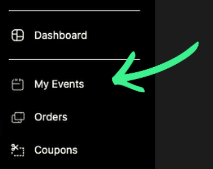
Find the event the attendee is attending.
Click on the event name to open the Event Management page.
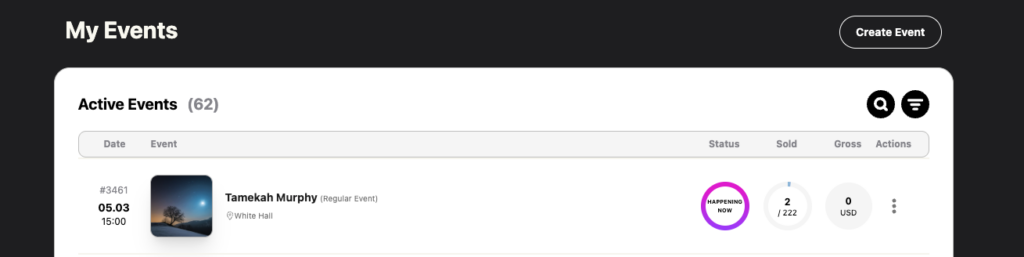
• Step 2
Locate the Order
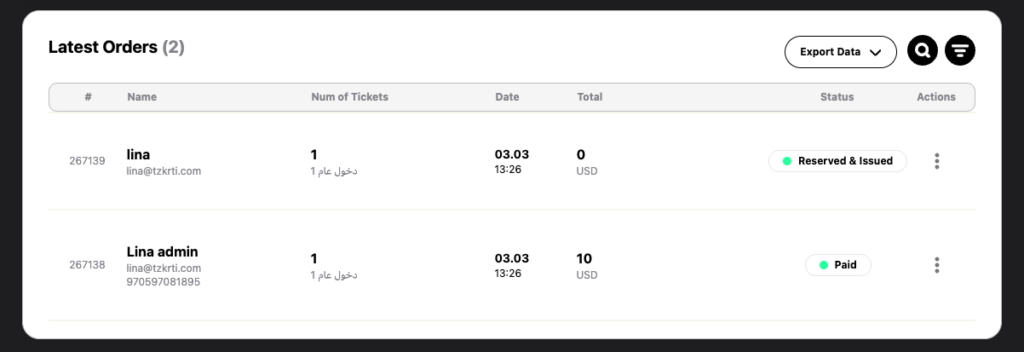
Scroll down to the Latest Orders table.
In this table, you can see the most recent ticket purchases for the event.
Find the participant whose ticket email needs to be resent.
• Step 3
Re-Send the Ticket Email
- Click the three-dot menu (⋯) on the right side of the order.
- A menu will appear with the following options:
- Show Order Details
- Download Tickets
- Send Tickets to Email
- Cancel Issued
- Gift Tickets
- Click Send Tickets to Email.
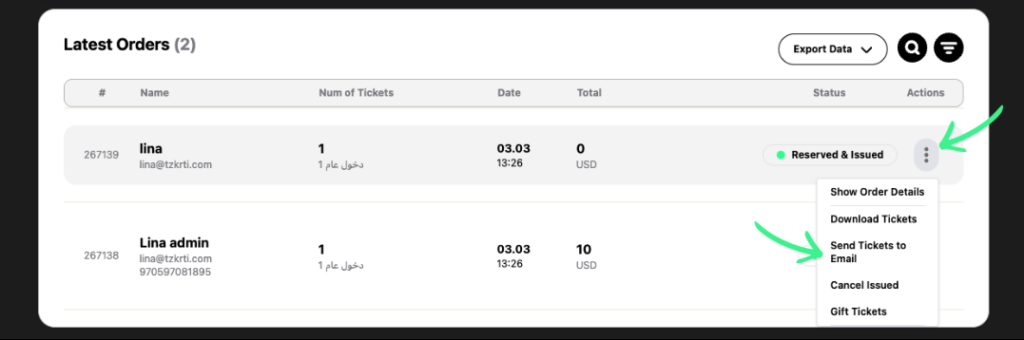
Tzkrti will automatically resend the ticket email to the email address used during the ticket purchase.
If the Participant Entered the Wrong Email
If the participant accidentally entered the wrong email address during checkout:
- Click the three-dot menu (⋯) next to the order.
- Select Download Tickets.
- Save the ticket file to your computer.
- Send the ticket manually using your email client to the correct email address.
Tip
Before resending tickets, it may also help to ask the participant to check their spam or junk folder, as ticket emails can sometimes be filtered there.