
Coupons allow organizers to offer discounts to attendees during checkout.
You can use coupons for promotions, special partners, early supporters, or private invitations.
This guide walks you through how to create and manage coupons for your events.
Step-by-Step Guide
• Step 1
Log In to Your Organizer Account
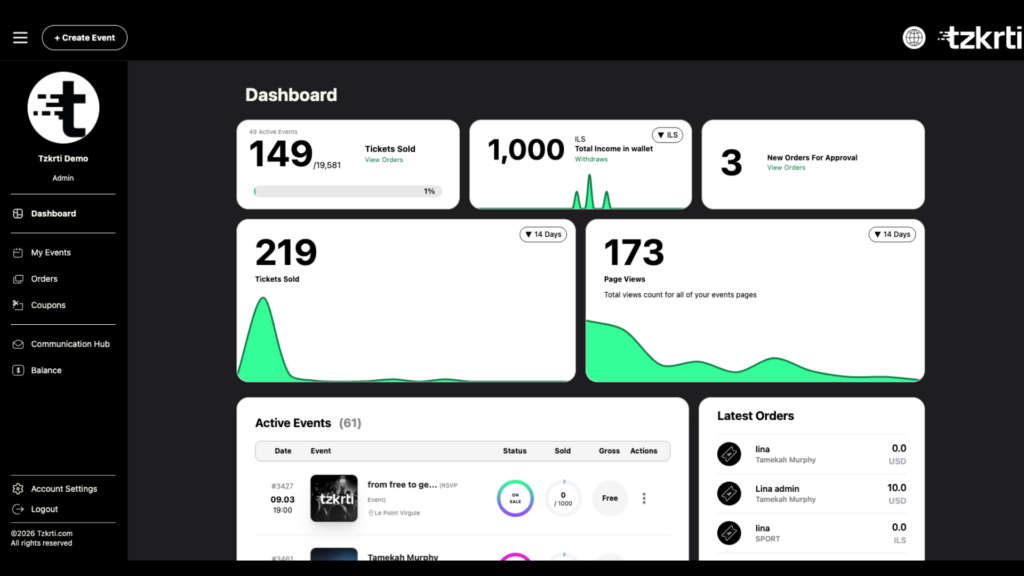
Sign in to your Tzkrti organizer account and navigate to your Organizer Dashboard.
• Step 2
Open the Coupons Section
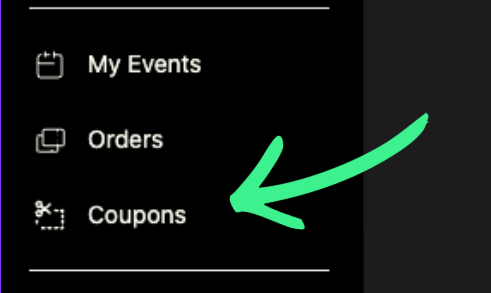
- Click the hamburger menu in the top corner of the dashboard.
- Expand the menu on the left side.
- Click Coupons.
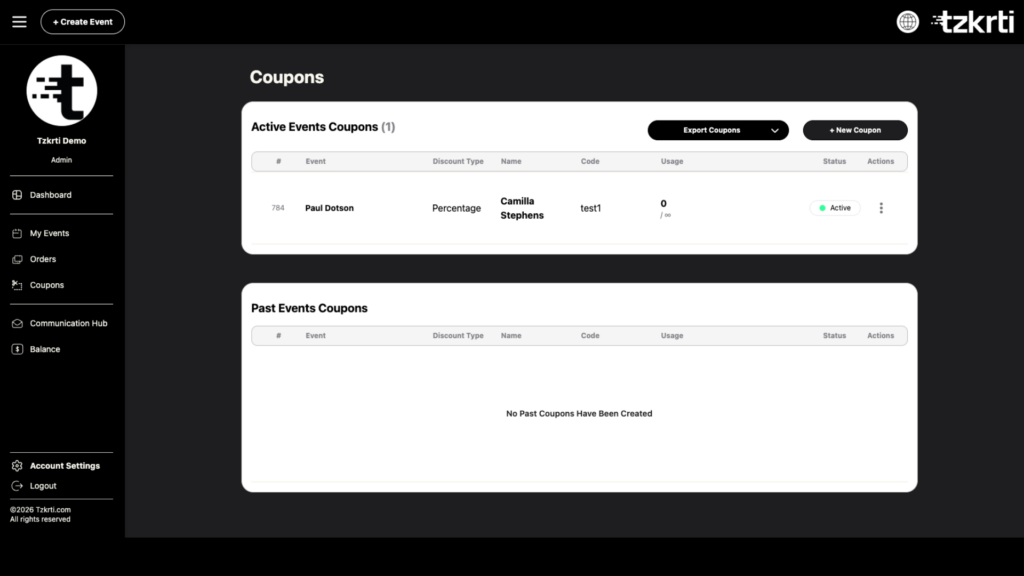
Once you access the Coupons page, you will see two sections:
- Active Events Coupons – coupons for currently active events
- Past Events Coupons – coupons associated with past events
• Step 3
Create a New Coupon
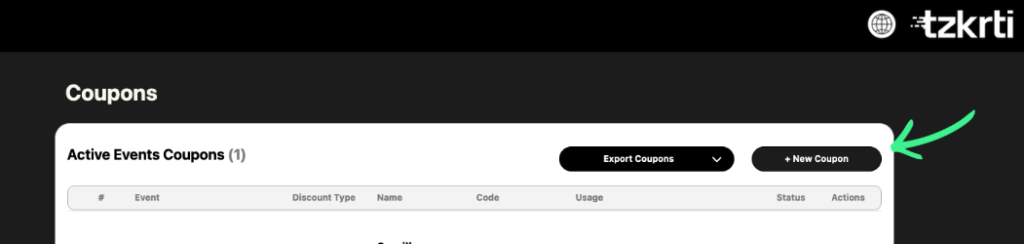
In the Active Events Coupons section, you will see two options:
- Export Coupons
- + New Coupon
Click + New Coupon to create a new discount coupon.
Step 4
Enter Coupon Details
A pop-up window will appear asking you to enter the coupon information.
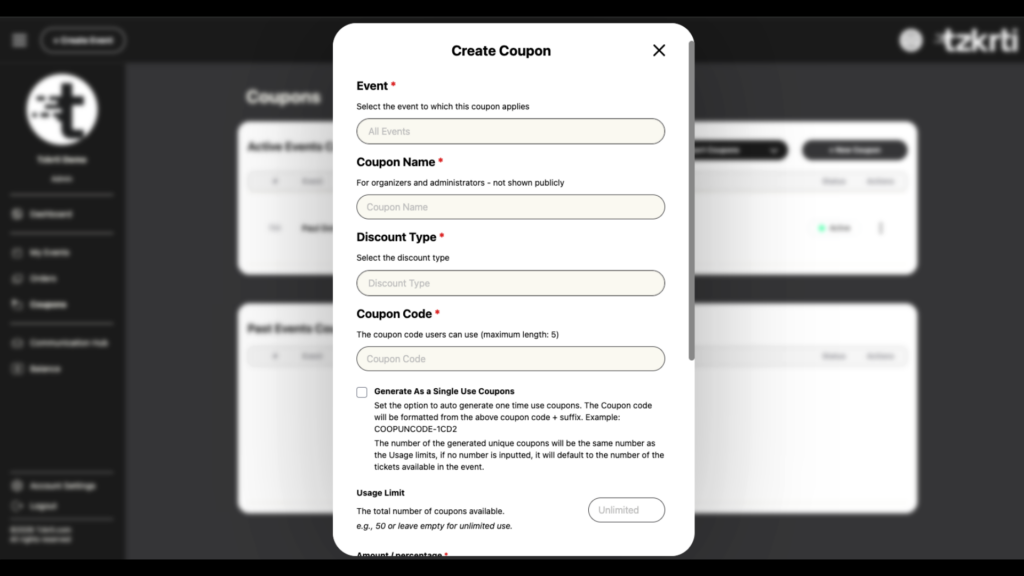
Fill in the following fields:
1. Event
Select the event the coupon will apply to.
2. Coupon Name
Enter an internal name for the coupon.
This name is only visible to organizers and administrators and is not shown to attendees.
3. Discount Type
Choose how the discount will be applied:
- Fixed Amount
- Percentage
4. Coupon Code
Enter the coupon code attendees will use at checkout.
Coupon codes can contain up to 5 characters.
5. Generate as a Single Use Coupon
Enable this option to automatically generate one-time-use coupons.
When enabled:
- The system will generate unique coupon codes using your base code plus a suffix.
- Example: COUPONCODE-1CD2
The number of generated coupons will match the Usage Limit you enter.
If no number is entered, it will default to the total number of available tickets for the event.
6. Usage Limit
Set the total number of times the coupon can be used.
Example:
- 50 → The coupon can be used 50 times
- Leave empty → Unlimited uses
7. Amount / Percentage
Enter the discount value.
Examples:
- 15% for a percentage discount
- $10 for a fixed discount amount
8. Minimum Tickets
Set the minimum number of tickets a customer must purchase to use the coupon.
Example:
- Enter 2 if the coupon requires buying at least two tickets.
Leave empty if there is no minimum requirement.
9. Maximum Tickets
Set the maximum number of tickets the coupon can apply to in a single purchase.
Customers can still buy more tickets, but the coupon will only apply to the maximum allowed.
Leave empty if there is no maximum limit.
• Step 5
Activate the Coupon
At the bottom of the form, you will see an Activate Coupon checkbox.
- Checked → The coupon is active and available for use
- Unchecked → The coupon is saved but disabled
• Step 6
Create the Coupon
After completing all fields, click Create Coupon to save and activate your coupon.
Your coupon will now be available for attendees to use during checkout.