
This guide gives you a quick overview of the Organizer Dashboard on Tzkrti and highlights the most important areas every organizer should know.
Overview
When you log in to your organizer account for the first time, you’ll land on the Organizer Dashboard.
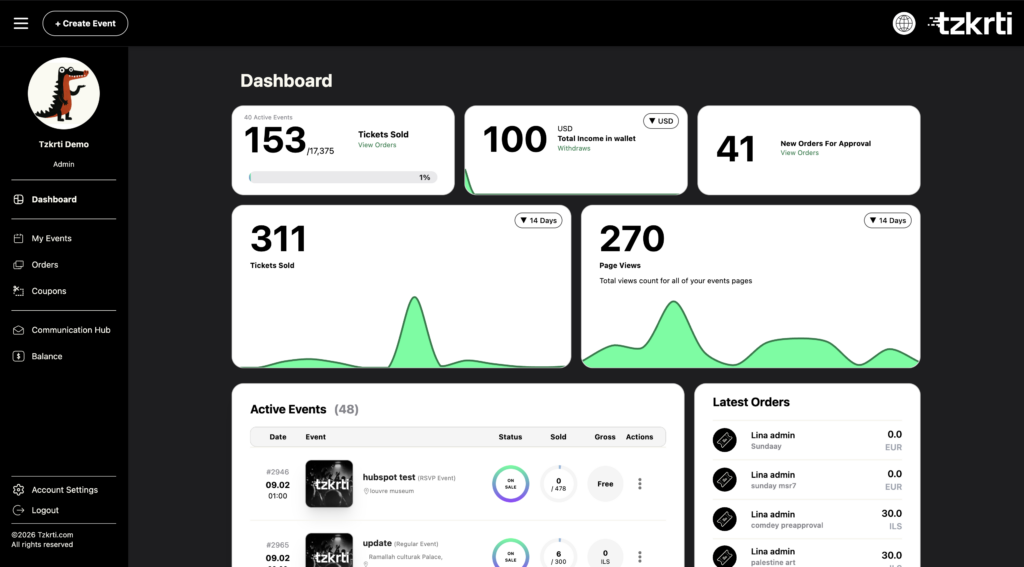
This dashboard gives you a real-time snapshot of your event performance, sales activity, and key actions—all in one place.
Dashboard Overview Cards
At the top of the dashboard, you’ll see several data cards designed to help you monitor performance at a glance:
Tickets Sold
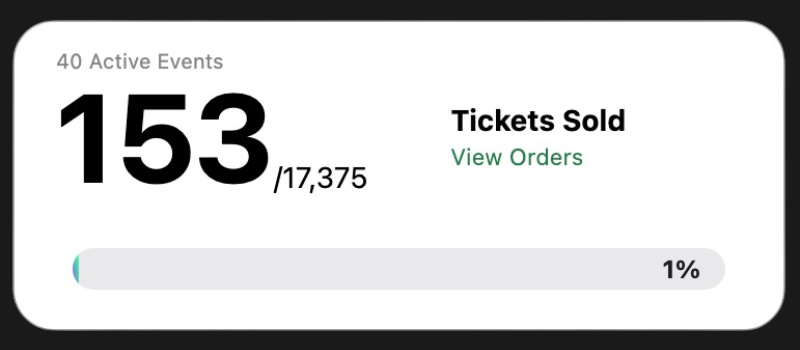
Shows the total number of tickets sold, displayed as:
- Tickets sold vs total tickets available
This helps you quickly understand how close your events are to selling out.
Total Income (Wallet)
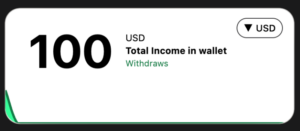
Displays the total balance in your organizer wallet.
- You can switch between supported currencies
- This balance reflects your earnings before withdrawals
Total Orders & New Orders for Approval
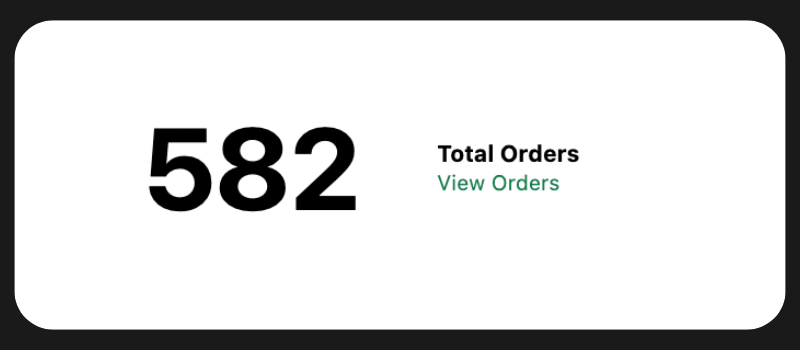
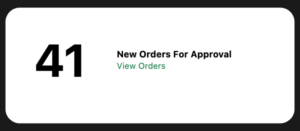
Shows orders that require your action, such as:
- Pre-approval orders
- Pending confirmations (if applicable)
This card helps ensure no attendee requests are missed.
Tickets Sold per Day
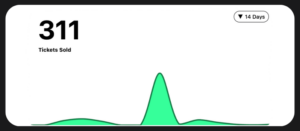
A visual breakdown of ticket sales over time.
- Includes timeframe filters
- Useful for tracking sales trends and campaign impact
Page Views
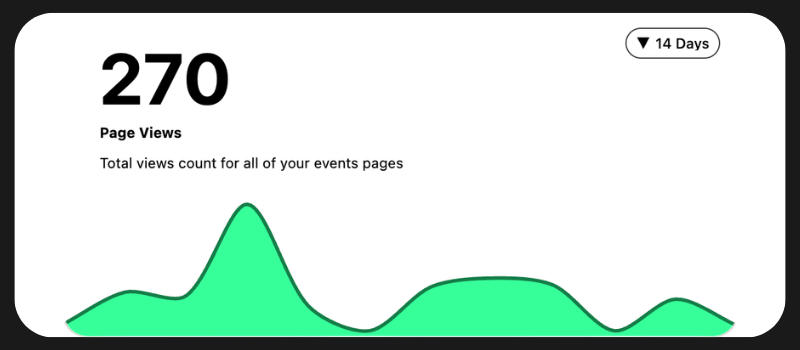
Displays how many times your event pages have been viewed.
- Includes timeframe filters
- Helps measure interest and visibility, even before purchases
Active Events Table
Below the cards, you’ll find the Active Events table.
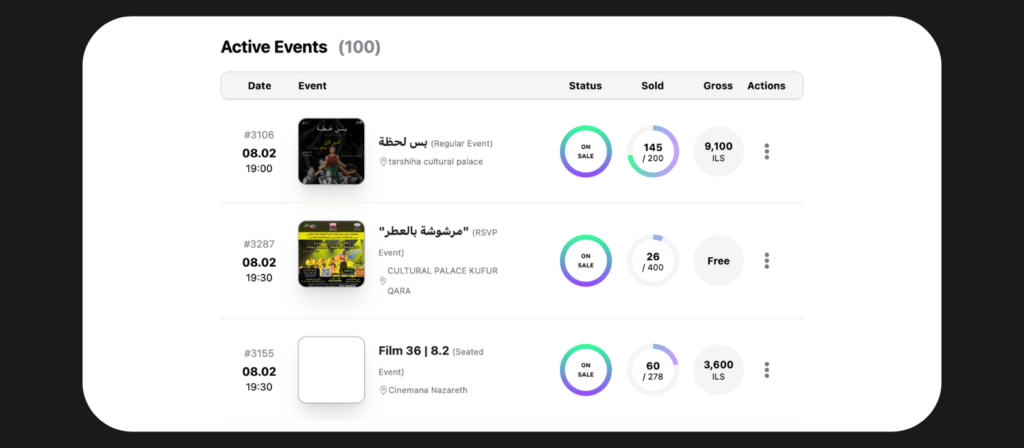
This table gives you a detailed overview of your current events, including:
- Event date
- Event name
- Event status (draft, pending approval, published, etc.)
- Tickets sold
- Gross amount
This is your main control center for monitoring live and upcoming events.
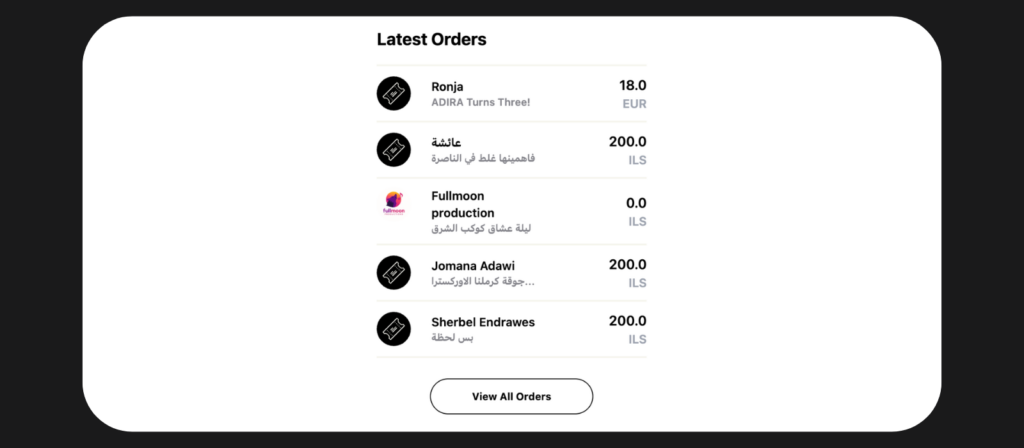
Latest Orders
The Latest Orders section shows recent ticket purchases, helping you stay up to date with attendee activity as it happens.
Top Navigation Bar

At the top of the dashboard, you’ll find:
- ☰ Hamburger Menu – Access all organizer tools and settings
- + Create Event – Start creating a new event at any time
- Page Settings – Manage:
- Language
- Currency
- Location
- Tzkrti Logo – Takes you back to the Tzkrti homepage
Hamburger Menu Overview
Clicking the hamburger menu opens your organizer navigation panel to your left, which includes:
Profile Photo & Name – Quick access to your account identity
Dashboard – Return to your main overview at any time
My Events – View, edit, and manage all your events
Orders – Review ticket purchases and attendee details
Coupons – Create and manage discount codes
Communication Hub – Communicate with attendees and manage event-related messages
Balance – View wallet balance and manage withdrawals
Account Settings – Update account and organizer details
Log Out – Securely sign out of your account
What to Know First (Quick Tips)
- Your Dashboard cards update in real time
The Active Events table is the fastest way to monitor event performance - Use Orders and New Orders for Approval to stay responsive to attendees
- Wallet balance does not automatically withdraw—you control payouts from the Balance section